PPC Setup
Setup Google Ad Account
| Steps | |
|---|---|
| 1. Visit Google Ads | 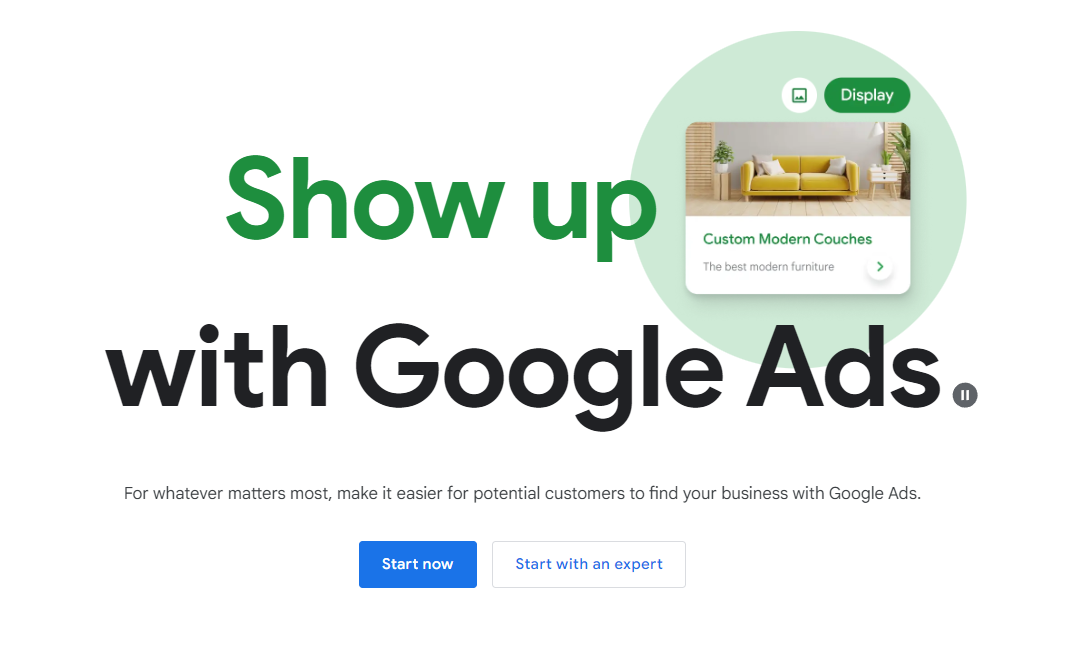 |
| 2. Insert your website here | 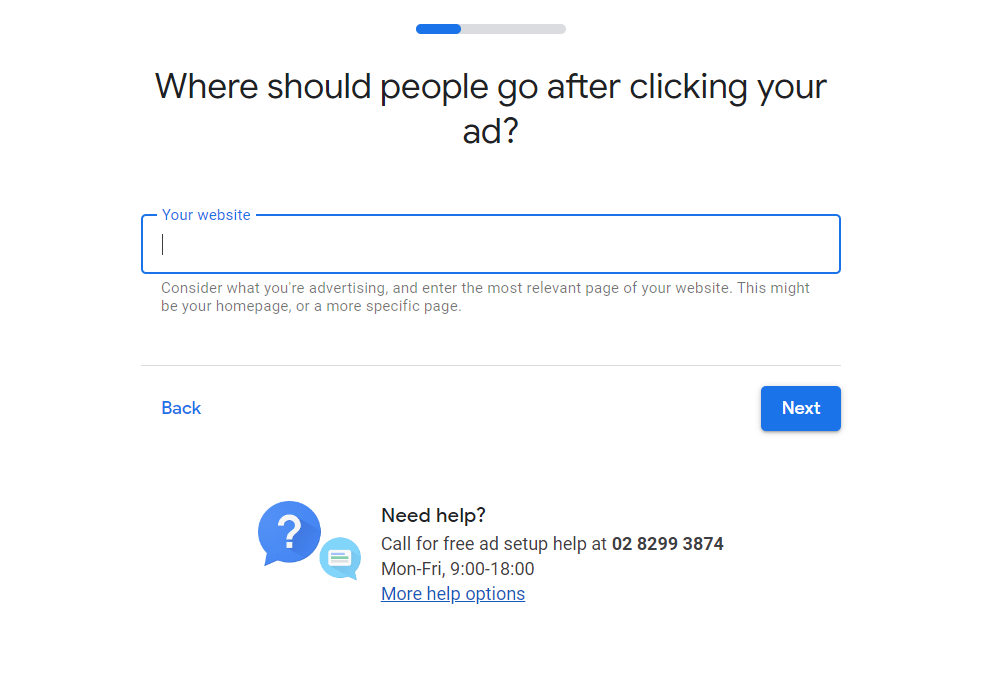 |
| 3. Start making campaigns and temporarily choose one of the goals. We can update it later once Google Ad account is set up | 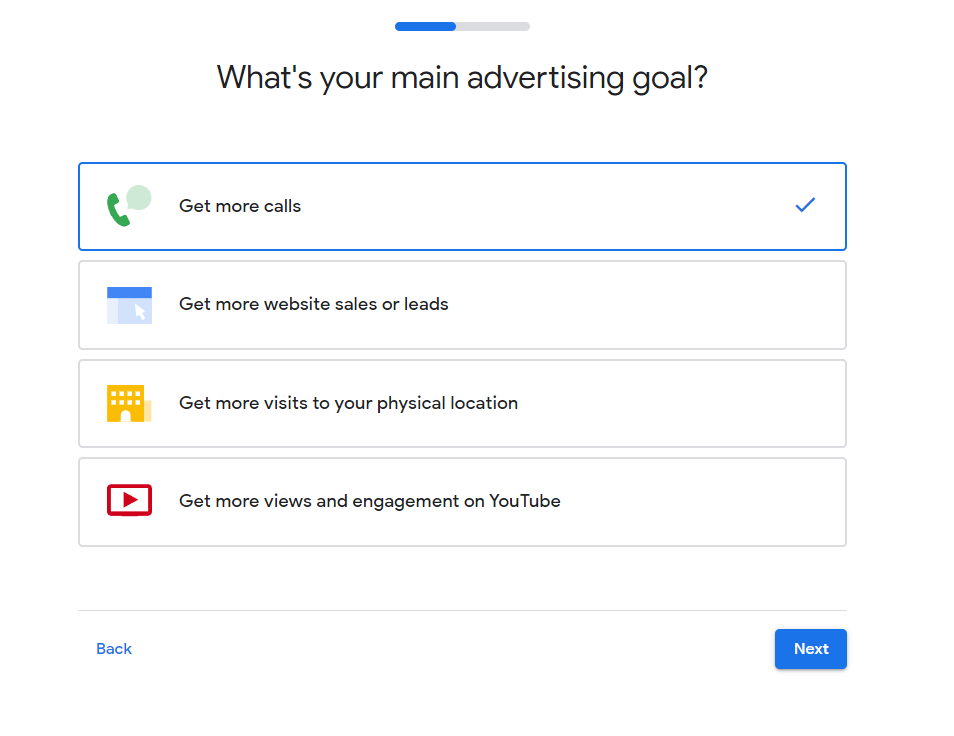 |
| 4. Enter Zip code, city, state or country | 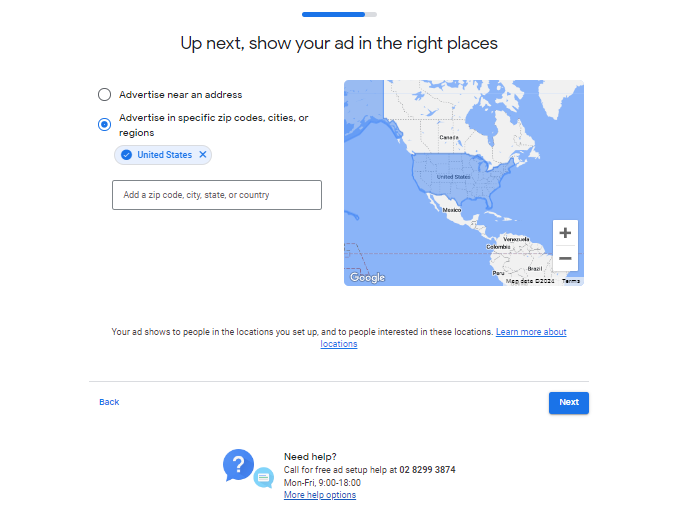 |
| 5. Fill out the campaign details (you can click on the field box for suggestions). We can update this fields later. | 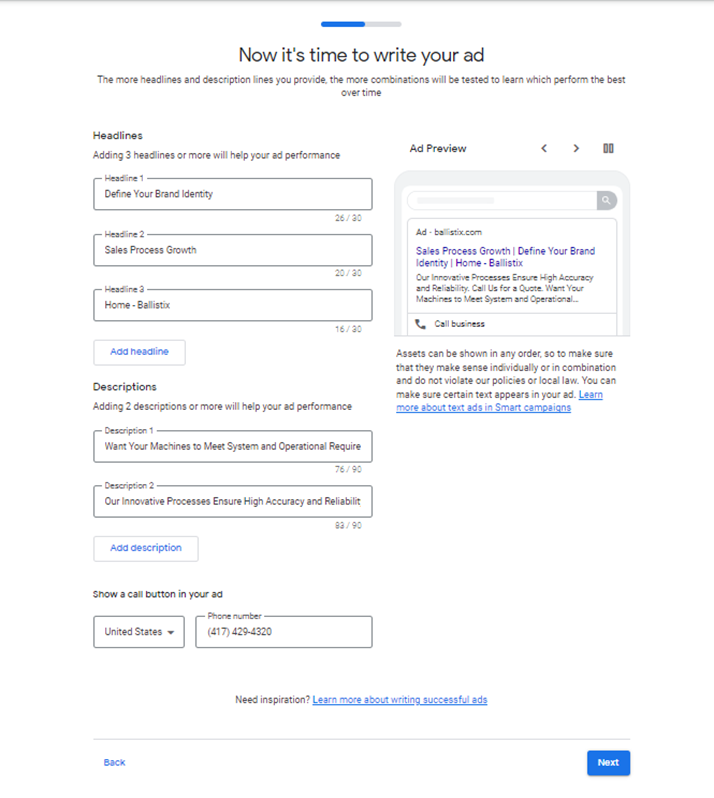 |
| 6. Add your keywords details for this ad campaign. We can remove and add more keywords later. | 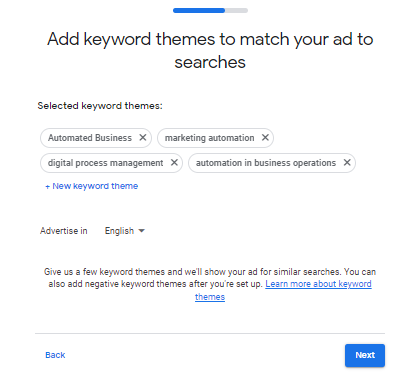 |
| 7. Add your budget option for this ad campaign. We can update this later | 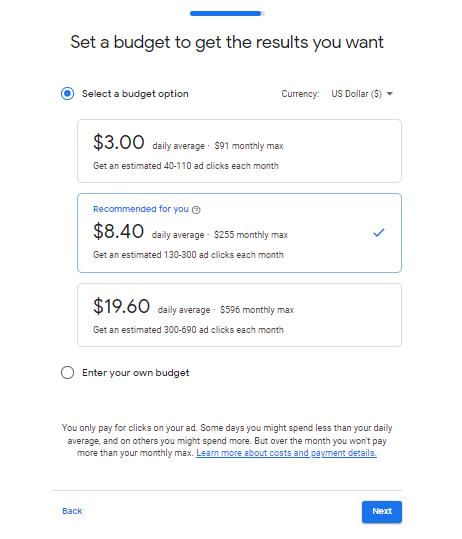 |
| 8. Review campaign | 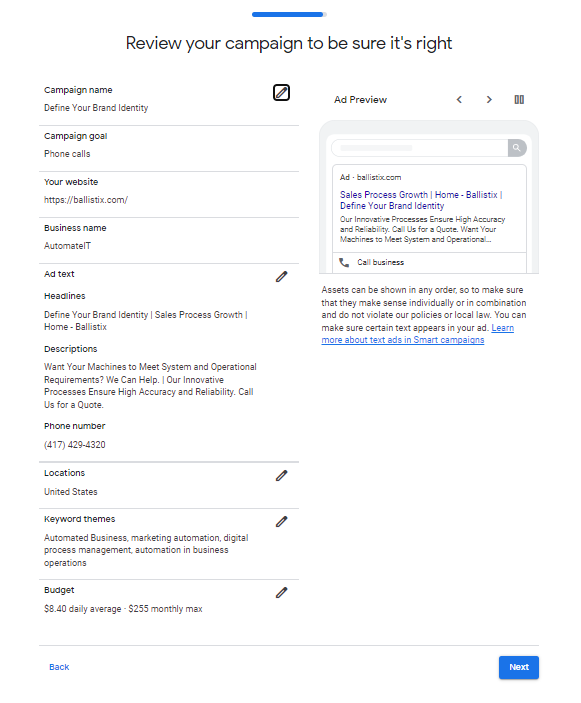 |
| 9. Enter your payment details | 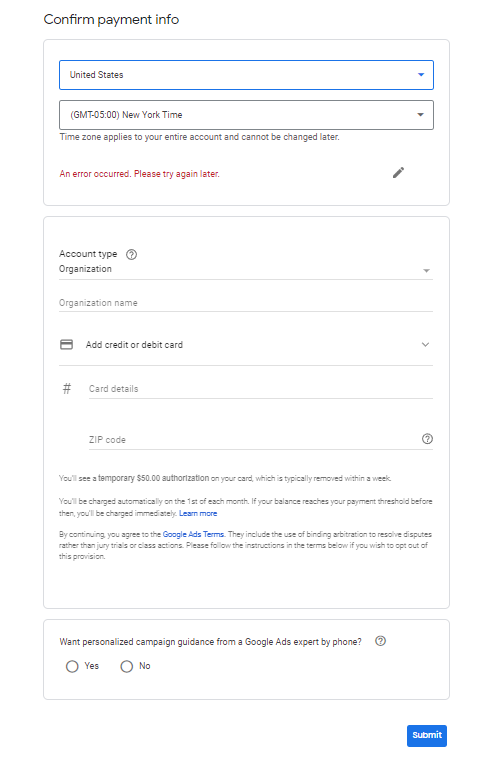 |
| 10. To add and share to Ballistix Consultants, go to Tools and Settings > Access & Security | 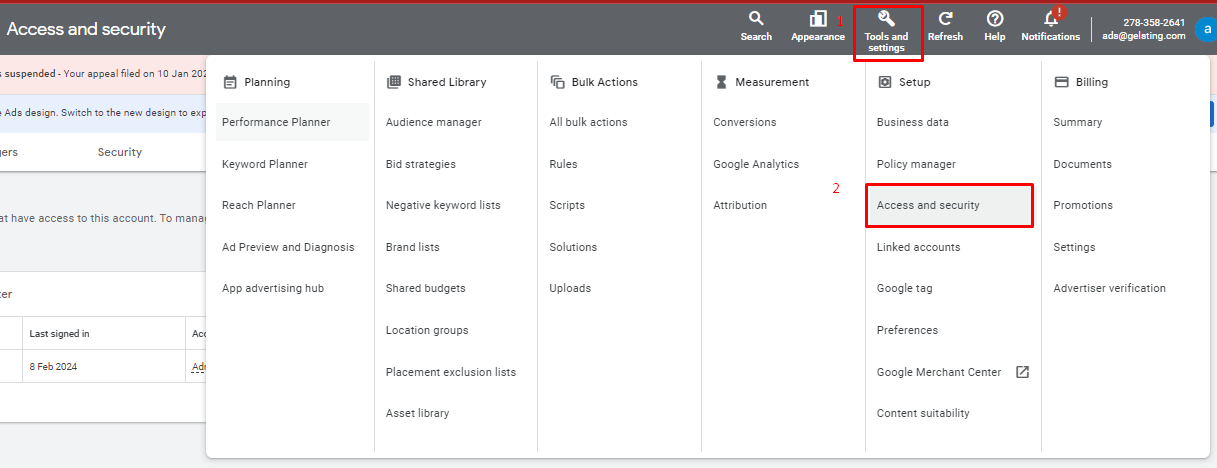 |
| 11. Click the PLUS SIGN | 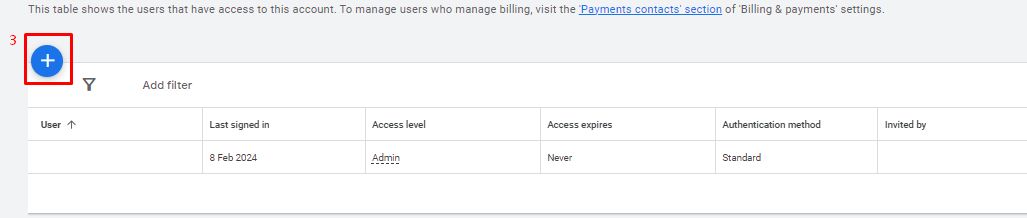 |
| 12. Please add this emails, dino.deasis@ballistix.com & jason.connors@ballistix.com and select ADMIN. Click Send Invitation |
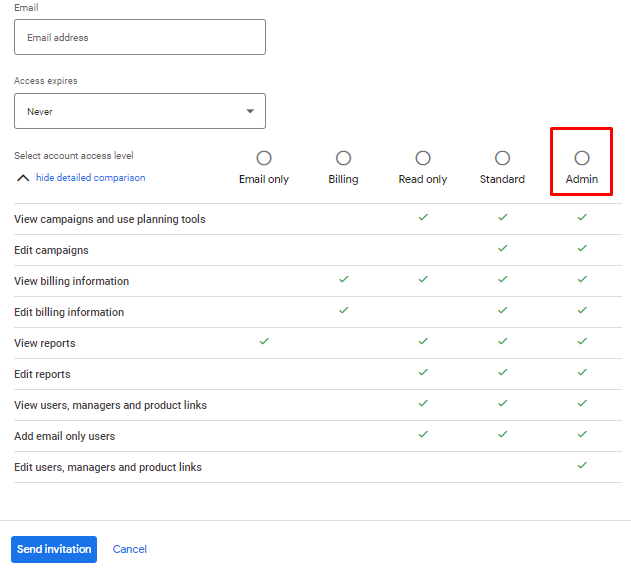 |
Setup Linkedin Account
| 1. Go to LinkedIn Business Page and click Create your Page |  |
| 2. Choose Company | 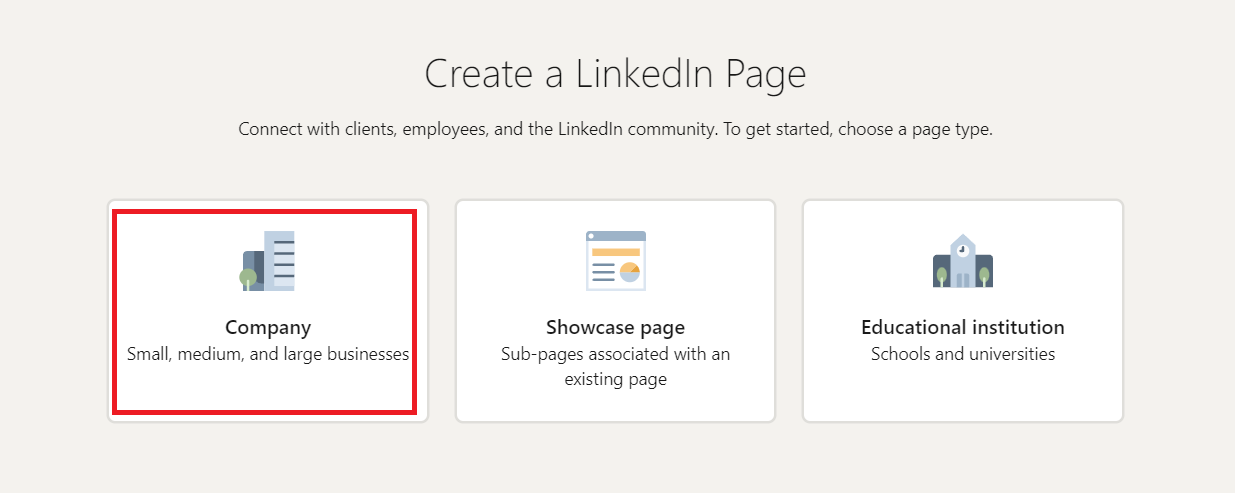 |
| 3. Enter your business details and click Create page to continue | 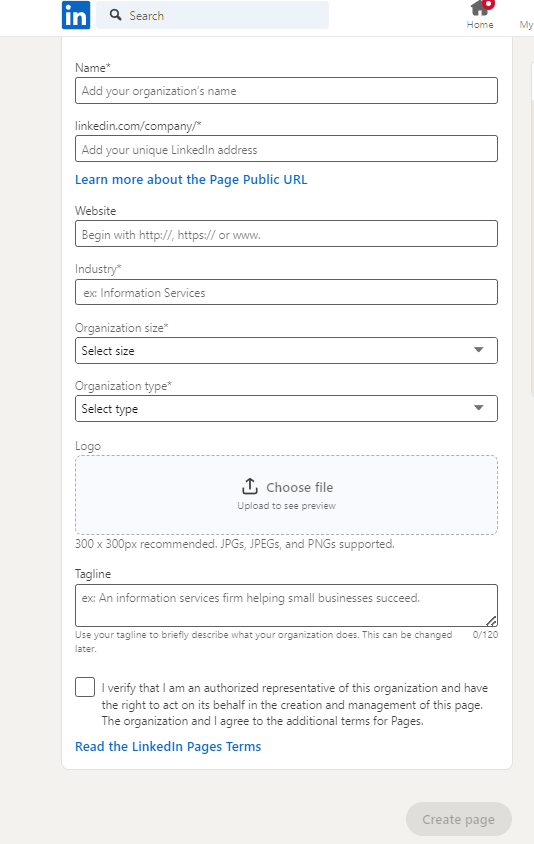 |
| 4. To add new users, Go to the Settings |  |
| 5. Please add this emails, dino.deasis@ballistix.com & jason.connors@ballistix.com and select ADMIN. | 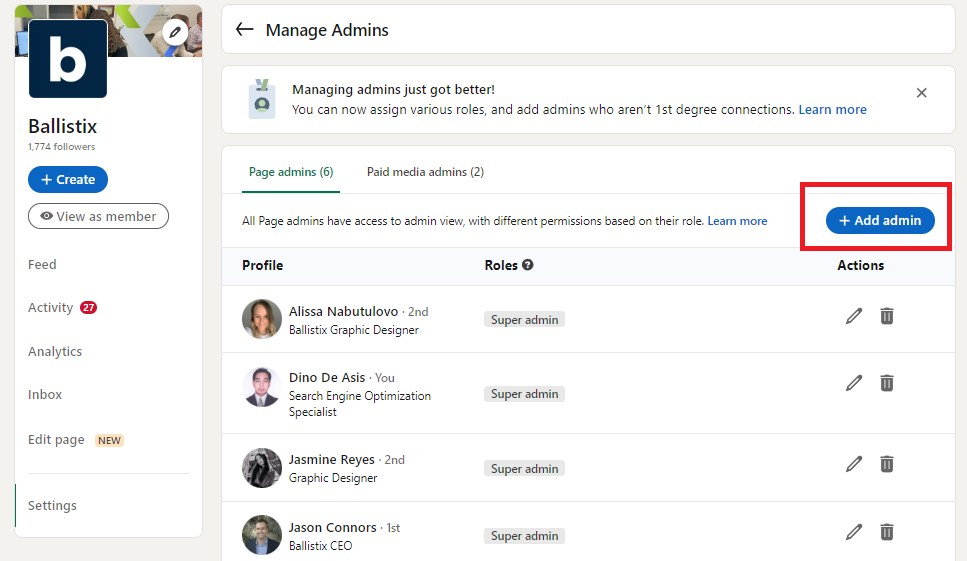 |
Setup Bing Account
| Go to the Microsoft Advertising sign up page and select Sign up now. In the following window, next to No account?, select Create one! | 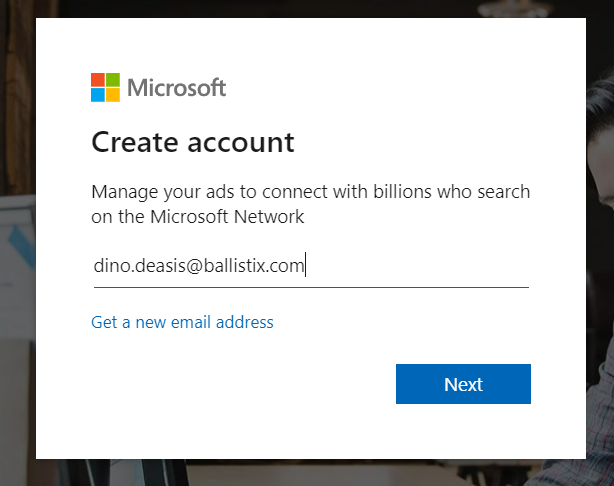 |
| Create a password and then select Next. Enter your First name and Last name, and then select Next. You will need to input your birthday after this | 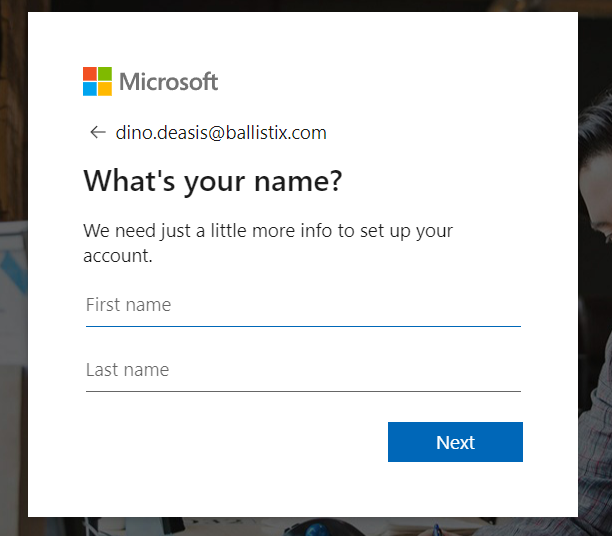 |
| Put the code sent to your email | 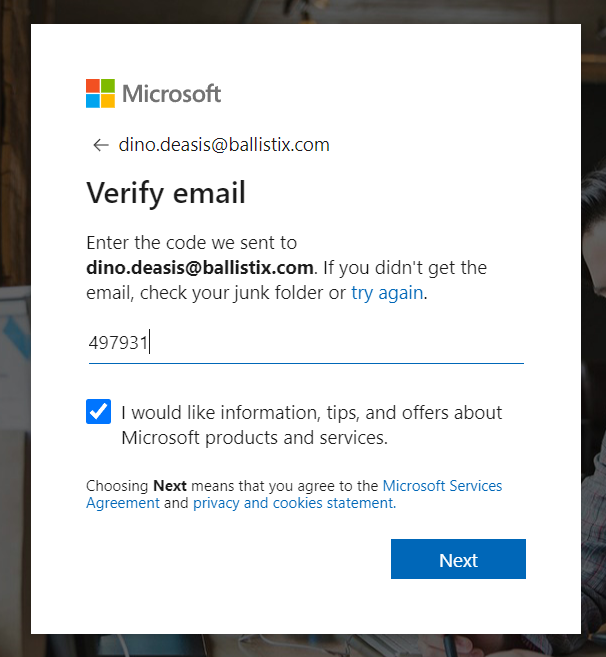 |
| Enter your website and create campaign | 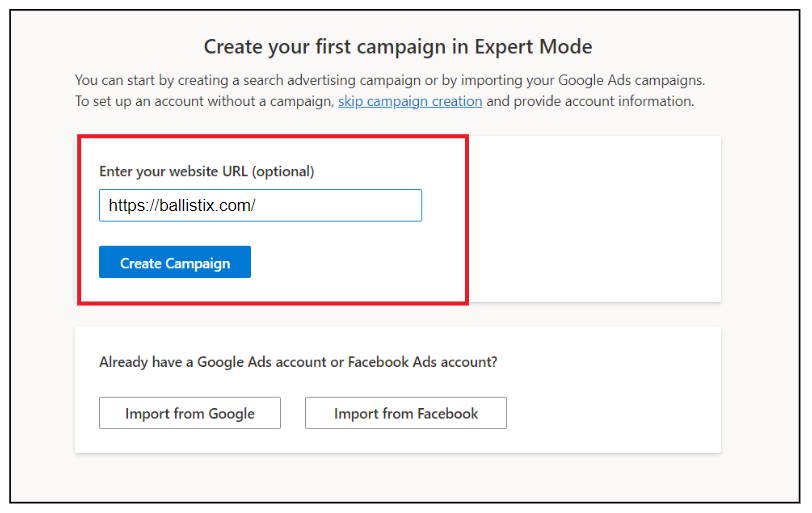 |
| Skip Scanning | 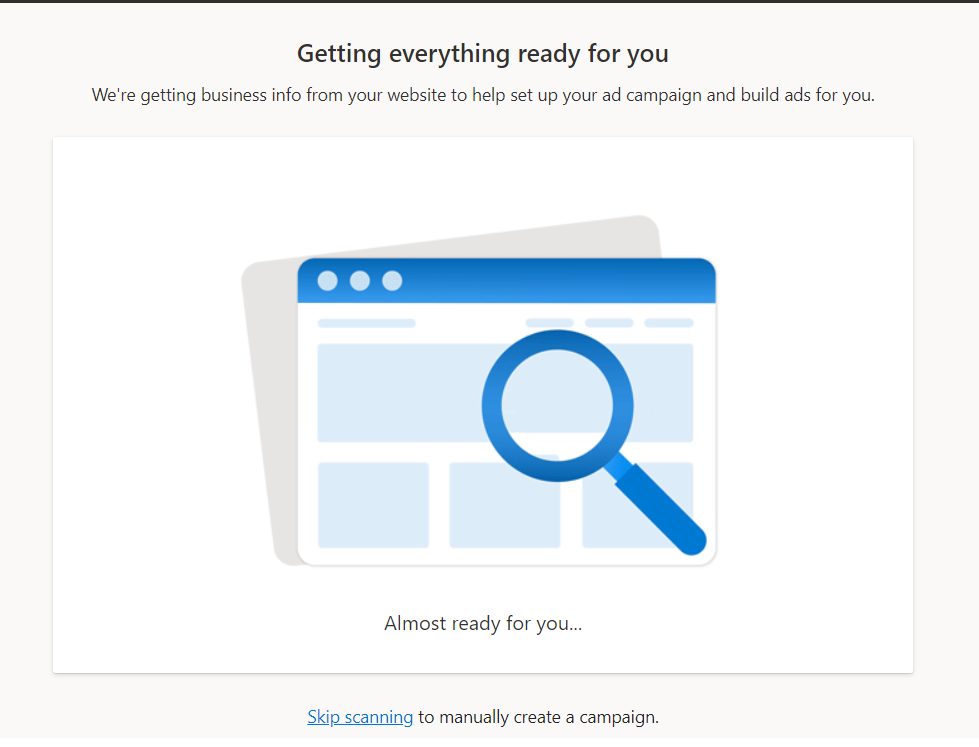 |
| Skip Campaign creation | 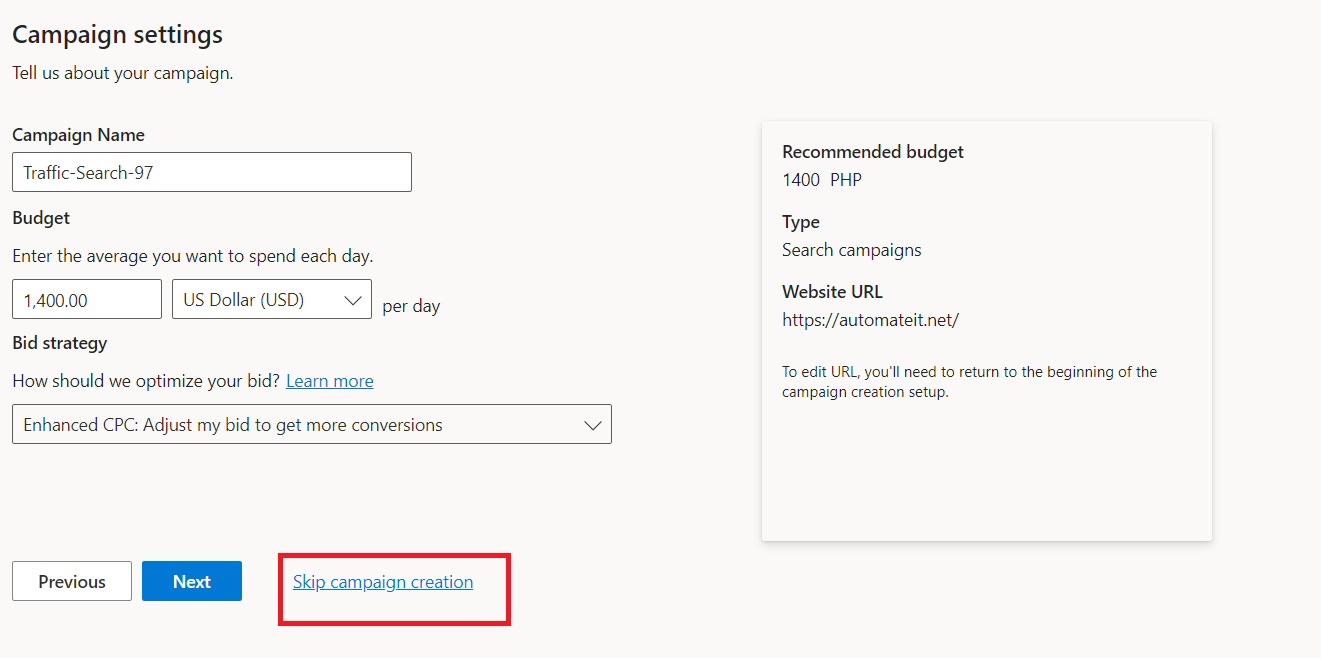 |
| Fill out the details and create account | 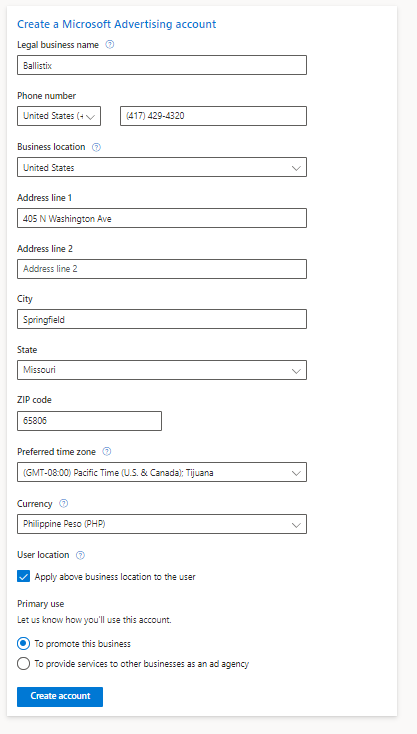 |