How to set up Google Search Console Instructions
Step 1. Sign in to Search Console With Your Google account.
You will need to have a Google account for this method to work when setting up Search Console. If you already have Google Analytics, Adwords or Gmail, you can use the same login.
If you do not have a Gmail account, please go and create a free one and make note of your login credentials. Go to: https://search.google.com/search-console
Step 2. Add Ballistix as a Google Console user
After you have created your Google Console account or logged in to your existing account, add the following Ballistix team member as a user with admin permissions.
jason.connors@ballistix.com
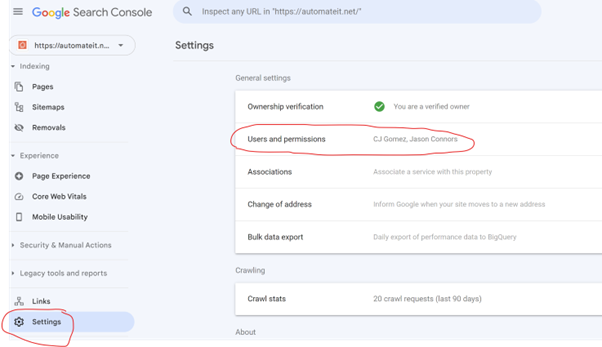
Click on the Settings tab in the left-hand side panel. This will open up the Settings page. The click on Users and permissions tab to the right.
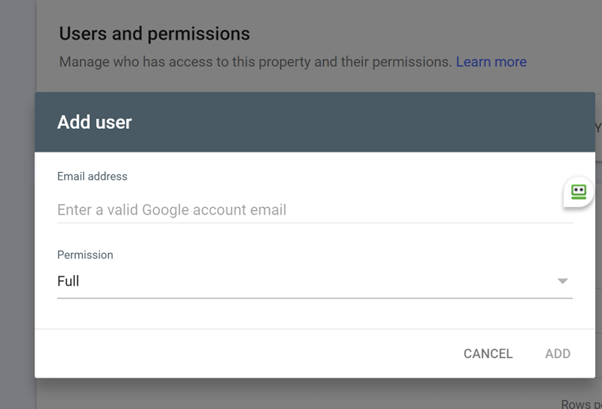
Click on Add User and add Ballistix team member with full Permission level. The new person will be added to the user list with permission level shown.
Step 3. Give Ballistix access to the website DND so we can verify the domain
Ballistix will verify the domain (website address) once we have access. In order to do this, we need access to your DNS manager so we can add a text record.
Here are instructions to give a third party delegate access to a GoDaddy account. Other DNS providers should offer similar functionality. https://au.godaddy.com/help/invite-a-delegate-to-access-my-godaddy-account-12376
See the section below if you do not want to give delegate access and validate domain inhouse.
Instructions if you want to verify Google Console inhouse
Step 1: Enter Your Website’s Domain to Add a Property.
After you sign in to Google Console (see above for instructions), you have the option to add a property type via your domain or via a URL prefix.

We recommend you set up Google Search Console using the domain option.
Step 2: Verify Your Website
To implement Google Search Console and start gathering data, you need to verify that you own your site.
Our recommendation is that you verify via your Domain as per the previous step. This process requires you to add a text record against the website domain in your DNS console.
Here are instructions we found online to guide you through this process. Verification for a Domain Property